An automatic trip and mileage log for work drives
If you drive for work, the miles are money: a reimbursement, an expense claim or a tax deduction. Roadlert already knows when you set off, where you went and how far you drove, so every trip it records is an entry in a mileage log, with nothing to type.
Work miles you drove but never claimed
- You forget to write down a trip, and it’s gone.
- At tax time you rebuild a year of driving from your calendar.
- Typing up trips by hand at the end of a long day.
With Roadlert
Every drive with Roadlert is logged by itself, with its miles, times and places: mark it business and export the month for your expenses.
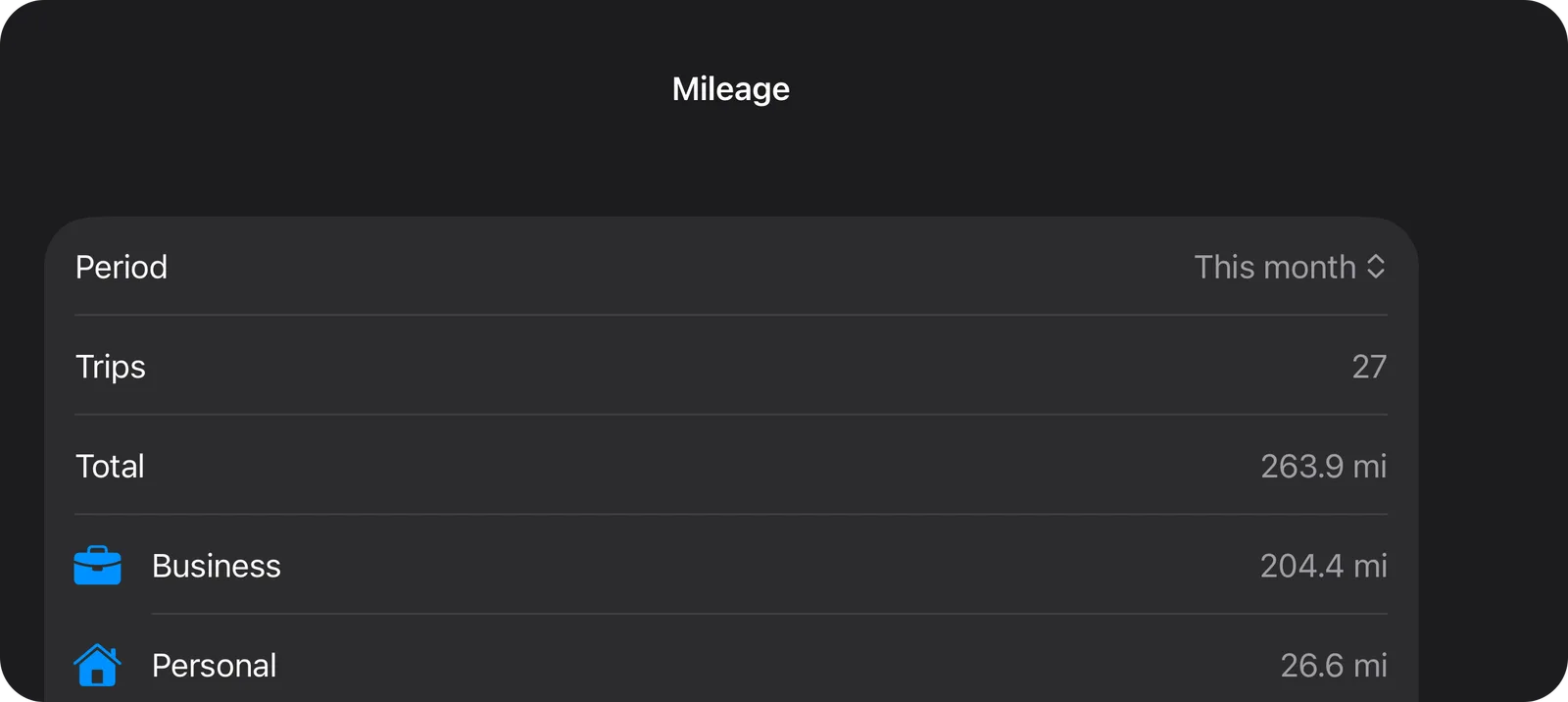
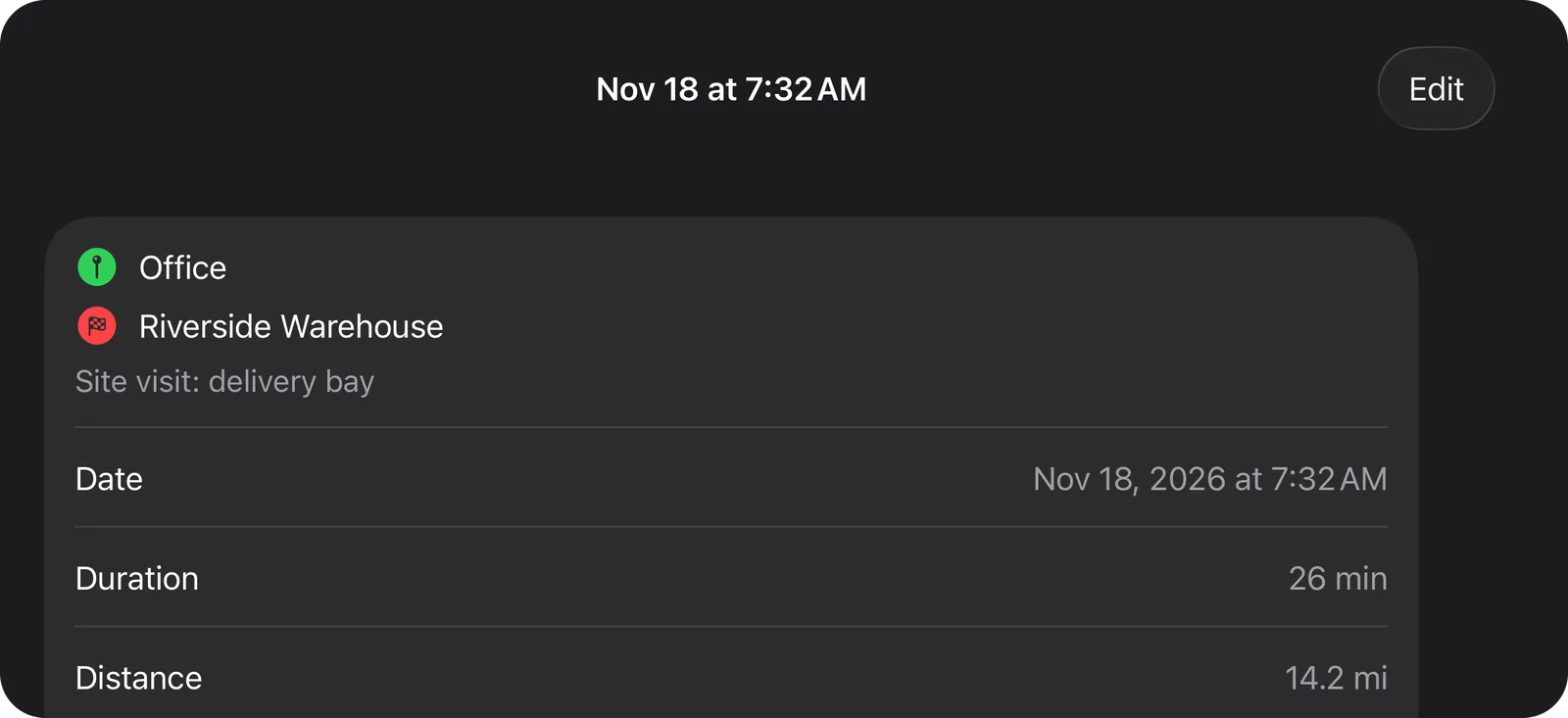
Screenshots of the app with sample trips.
How it works
What each trip records
The date, start and end times and duration; where the trip started and ended, named for you from GPS with Apple Maps (or typed); the distance driven, measured by GPS; and the GPS positions of the start and the end.
Add the purpose, Business or Personal, and a note such as the client or the reason for the trip. Each trip also keeps its driving score and any clips saved on the way.
Records you can rely on
Times, distance and GPS positions are recorded by the app and can’t be edited afterwards. Only the place names, purpose and notes can be changed, so the log reflects the drive that really happened.
Trips start by themselves once you are driving and end after five minutes parked, or you can start and end one yourself.
Business or personal in one swipe
Choose the purpose when you start a trip, set a default for automatic trips in Settings, or swipe a trip in the list. The Mileage screen totals this month, last month, this year or last year: business miles, personal miles and any trips still to mark.
Export for expenses and taxes
One tap shares the log as a CSV spreadsheet that opens in Numbers, Excel or Google Sheets: one row per trip, with date, times, purpose, from, to, distance, notes and GPS points, and a total. Export every trip or business trips only, then send it by Mail, save it to Files or import it into your expenses system.
There is no account and nothing is uploaded: the log lives on your iPhone and leaves it only when you share it.
Good to know
- Trips are recorded while Roadlert is open on screen. If you switch away or lock the phone, the trip pauses and those miles aren’t counted.
- An automatic trip starts once you have been driving for a few seconds. For an exact distance from the very start, start the trip yourself.
- GPS distance can differ a little from your odometer, especially in tunnels and between tall buildings.
- Roadlert keeps the log but doesn’t give tax advice. Check what your employer or tax authority needs; the IRS, for example, asks for the business purpose of each trip, which you can add as a note.
Read next: How to track business mileage without forgetting a trip
Roadlert is a driver aid, not a safety system. Keep your eyes on the road, and set the app up before you drive off.
Related features
Trip score & coaching
A score out of 100 for every trip, a weekly trend and one tip to improve.
Event clips
Clips saved automatically on close calls, hard braking or impact, including the 10 seconds before.
Following distance
Your gap to the car ahead in seconds, with a spoken warning when it gets too short.